
The Compression test sink performs a dynamic compression test on a combustion engine. This quick and easy test gives a good impression if an engine has a compression problem or not without having to apply pressure sensors to the cylinders.
The starter current is measured during cranking and then used to calculate the relative compression of each cylinder. When the deviation of one or more cylinders is too big, this is indicated with a red bar. The Compression test sink uses a special output window, with a bar graph for each cylinder, as can be seen below.
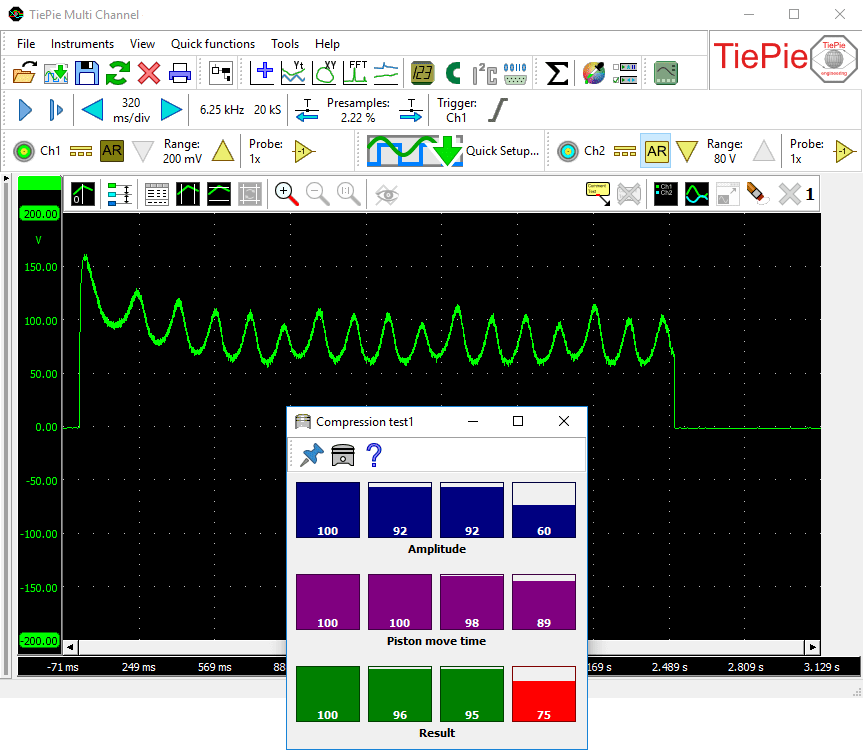
Usage
The engine must be prepared such that it will not start during cranking. For a petrol engine for example, the ignition can be disconnected. Using a Current clamp TP-CC600 the starter current is measured. The oscilloscope must be setup to capture approximately 5 seconds of data at a sampling rate of 10 kS/s. The input range must be set to a value that can measure the high starter inrush current. Triggering must occur on the rising edge of the current peak, trigger time out must be set to infinite. The engine must then be cranked for 3 to 4 seconds.
Properties and actions
To control the behavior of the Compression test sink, several properties and actions are available. These can be accessed through a popup menu which is shown when the sink is right clicked in the object screen.
Always on top
When the Always on top property is switched on, the Compression test window cannot be hidden under other windows of the Multi Channel oscilloscope software. The Always on top property is available on the toolbar and in the popup menu.
Cylinder count
The property Cylinder count tells the sink how many cylinders the engine has. It must be set before performing the measurement. It can be set to any value from 2 to 24. The default value is 4.
Bring to front
When the Compression test output window is hidden behind another window in the Multi Channel oscilloscope software, the action Bring to font will make it visible. The Bring to front action is available in the popup menu.
