
The I2C decoder sink decodes analog data on an I2C bus to I2C data. Just measure the Clock and Data lines of the I2C bus with a scope and connect the measuring channels to an analyzer sink.
The I2C decoder always needs two sources: the first connected source will be used as I2C SCL (clock) and the second connected source will be used as I2C SDA (data).
I2C communication uses 7 bit addresses, followed by a bit that indicates a read (1) or write (0) of that address. The I2C decoder displays the 7 bit addresses in its output.
All read and written data displayed by the I2C decoder is shown in hexadecimal format, only addresses are prefixed with 0x.
The sink uses a window for its output. The output can be saved to a text file.
This I2C decoder sink is no longer used in the Multi Channel oscilloscope software, use the I2C decoder I/O instead.
Usage
Acquisition settings
For best results, use the following setups to capture the data:
| I2C mode | Maximum bus rate | Minimum sample frequency | Pre trigger | Trigger timeout | Trigger channel | Trigger type | Trigger level |
|---|---|---|---|---|---|---|---|
| Low speed mode | 10 kHz | 50 kHz | 1% | Infinite | I2C SDA (data) | Falling | 2 V |
| Standard mode | 100 kHz | 500 kHz | 1% | Infinite | I2C SDA (data) | Falling | 2 V |
| Fast mode | 400 kHz | 2 MHz | 1% | Infinite | I2C SDA (data) | Falling | 2 V |
| Fast mode plus | 1 MHz | 5 MHz | 1% | Infinite | I2C SDA (data) | Falling | 2 V |
| High speed mode | 4.3 MHz | 25 MHz | 1% | Infinite | I2C SDA (data) | Falling | 2 V |
| Ultra fast mode | 5 MHz | 25 MHz | 1% | Infinite | I2C SDA (data) | Falling | 2 V |
Note: Currently I2C High Speed mode is not fully supported.
Address aliases
I2C uses device addresses to communicate to specific devices on the bus. For easy recognition of the devices in the decoded data, the I2C decoder supports address aliases. Address aliases can be added and changed on the Aliases page of the output window.
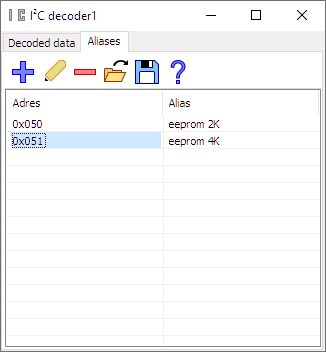
On the aliases page in the output window, the following actions are available:
-
 Add an address item to the list of address aliases.
-
 Edit the address alias of the selected item in the list of address aliases.
This can also be achieved by double clicking the address field on the selected line.
Edit the address alias of the selected item in the list of address aliases.
This can also be achieved by double clicking the address field on the selected line.
-
 Remove the selected address item from the list of address aliases.
-
 Load a file with address aliases.
-
 Save the current list of address aliases to a file.
Properties and actions
To control the behavior of the I2C decoder sink, several properties and actions are available. These can be accessed through a toolbar with buttons at the top of the I2C decoder output window and through a popup menu which is shown when the sink is right clicked in the Object screen.
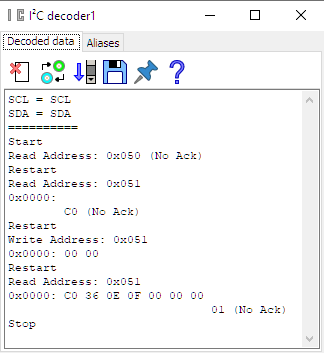
Voltage
I2C supports two different bus voltages: 3.3 and 5 V. The Voltage property needs to be set accordingly for proper decoding. The default value is 3.3 V. The Voltage property is available through the popup menu.
Clear
The Clear action ( )
clears all text from the I2C decoder output window
The Clear action is available as button on the toolbar.
)
clears all text from the I2C decoder output window
The Clear action is available as button on the toolbar.
Swap inputs
The I2C decoder always needs two sources: the first connected source will be used as
I2C SCL (clock) and the second connected source will be used as I2C SDA (data).
When the sources are connected the wrong way, the Swap inputs action
( ) will correct it.
The Swap inputs action is available as button on the toolbar and through the popup menu.
) will correct it.
The Swap inputs action is available as button on the toolbar and through the popup menu.
Auto scroll to bottom
The Auto scroll to bottom property ( ) makes the I2C decoder output window scroll to the bottom of its content each time new data
has arrived, making the latest data visible.
The Auto scroll to bottom property is available as button on the toolbar.
) makes the I2C decoder output window scroll to the bottom of its content each time new data
has arrived, making the latest data visible.
The Auto scroll to bottom property is available as button on the toolbar.
Export data
The Export data action ()
saves the content of the I2C decoder output window to a text file.
The Export data action is available as button on the toolbar.
Always on top
When the Always on top property ( ) is switched on, the I2C decoder output window cannot be hidden under other windows of the
Multi Channel oscilloscope software.
The Always on top property is available in the popup menu.
) is switched on, the I2C decoder output window cannot be hidden under other windows of the
Multi Channel oscilloscope software.
The Always on top property is available in the popup menu.
