
The Software generator or SoftGen source generates fully configurable standard signals like sine, block and triangle. All properties of these standard signals can be adjusted. The output signal of the Software generator source can be displayed in a graph or a meter and it can be used as source for I/Os and other sinks.
Typical applications for the SoftGen are to compare measured signals with well known software generated signals or to test complex mathematical operations with well known signals before using them with real world measured signals.
Properties and actions
To control the behavior of the SoftGen source, several properties and actions are available. These can be accessed through a popup menu which is shown when the source is right clicked in the object screen. The properties can also be accessed through its settings window which is shown when the source is double clicked.
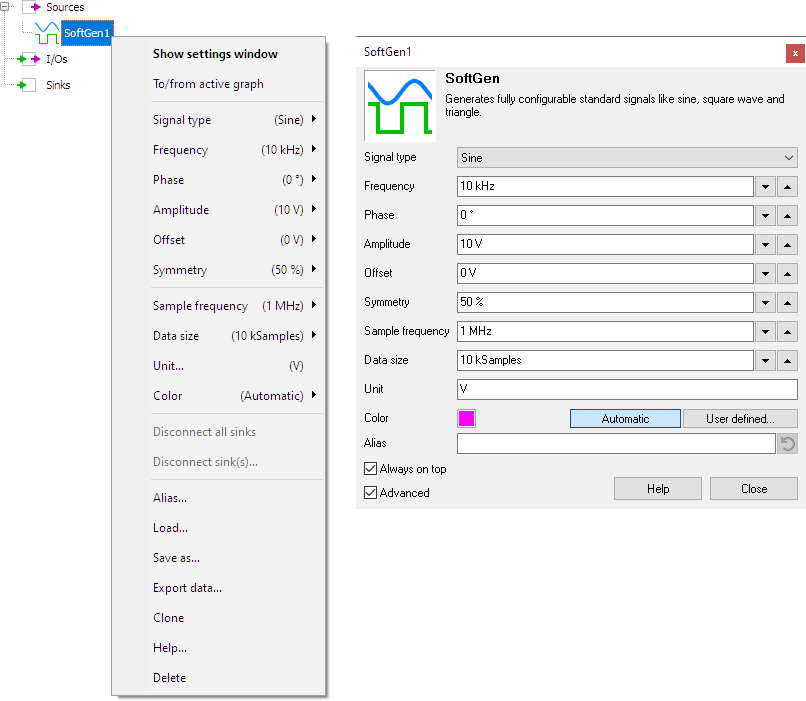
By default, the settings window only shows the most used settings. When Advanced is ticked, the extended window with all settings is shown. See also the program settings.
Signal type
The Signal type can be selected from several standard signals:
- Sine
- Triangle
- Square
- Noise
Signal Frequency
The Signal frequency of the output of the SoftGen can be set to one of several default values. A user defined setting is also available.
Setting the Signal frequency only applies to periodical signals. When the Signal type is set to Noise, the Signal frequency property is not available.
Phase
The Phase property determines at which position in a period of the signal the generation starts. By changing the phase, a signal can be given a time shift. Several default values are available to select from, as well as a user defined setting.
Setting the phase only applies to periodical signals. When the Signal type is set to Noise, the Phase property is not available.
Amplitude
The Amplitude property determines how large the swing of the output signal of the SoftGen source is. It can be set to one of various default values or to a user defined value.
Offset
The Offset property applies a vertical shift to the signal. It can be set to one of various default values or to a user defined value.
Symmetry
The way how the Symmetry property affects the signal shape depends on the Signal type that is selected.
-
Sine and Triangle
The Symmetry property determines the ratio between the rise time of the signal and the fall time of the signal. -
Square
The Symmetry property determines the Duty cycle of the signal. -
Noise
The Symmetry property is not available
The Symmetry is defined as a percentage. It can be set to one of various default values or to a user defined value.
Data size
The Data size property determines the size of the data block in samples that is generated by the SoftGen source. It can be set to one of various default values or to a user defined value.
Sample frequency
The Sample frequency property determines the number of samples per second that is generated by the SoftGen. It can be set to one of various default values or to a user defined value.
Make sure to set the Sample frequency to a value that is at least two times higher than the Signal frequency of the SoftGen, otherwise aliasing will occur.
Common properties and actions
Related information

