|
|||||||||||||||||||||||||||||||||||||||||||||||||||||||||||||||||||||||||||||||||||||||||||||||||||||||||||||||||||||||||||||||||||||||||||||||||||||||||||||||||||||||||||||||||||||||||||||||||||||||||||||||||||||||||||||||||||||||||||||||||||||||||||||||||||||||||||||||||||||||||||||||||||||||
|
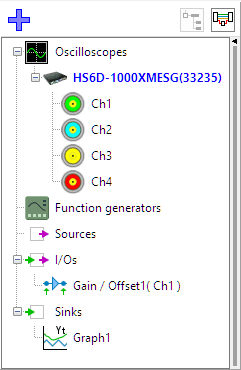
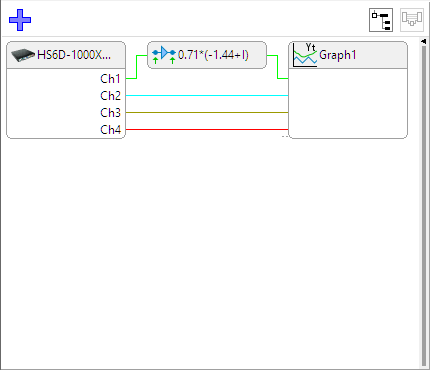
Object treeThe object tree is situated at the left side of the main window of the application. It contains the measuring instruments, function generators and other objects constructed in the application. These other objects are data sources, I/O blocks and data sinks, which all can be used in combination with the measured data. Data of all sources can be exported. With drag and drop, the different objects in the object tree can be connected to other objects. You can drag a source object on a sink object, I/O block or a graph. When the source is dropped it will connect to the object it was dropped on. You can create a new source, I/O or sink by right clicking on the label in the object tree and select the object of your choice from the popup menu.
|
||||||||||||||||||||||||||||||||||||||||||||||||||||||||||||||||||||||||||||||||||||||||||||||||||||||||||||||||||||||||||||||||||||||||||||||||||||||||||||||||||||||||||||||||||||||||||||||||||||||||||||||||||||||||||||||||||||||||||||||||||||||||||||||||||||||||||||||||||||||||||||||||||||||
| Icon | name | Short description |
![]() |
AWG | Arbitrary Waveform Generator |
AWGThe AWG control window can be opened by double clicking on the AWG object in the object tree. More information on the AWG can be found on the AWG page.
SourcesIn the sources section of the object tree different sources can be added. A source can be a time domain signal, but also a frequency spectrum. Currently available sources are:
| Icon | name | Short description |
![]() |
Demo source | Contains constant time domain data |
![]() |
Software generator | Can be used to generate standard signals |
Demo sourceThe demo source contains a little bit of data, which is only meant for demonstration. There are two different data sets from which one is chosen depending on the number (even or odd) of the demo source.
| Hint: | Try creating two demo sources and add them to an empty graph. If you set the graph to XY-mode you can see the purpose of the demo data. You can read how to view data in a graph here. |
Software generatorThe software generator can be used to generate standard signals like sine, block and triangle. Through its popup menu all its settings can be changed. This object can be used in combination with any other source, including the channels of the measurement instruments. The generator supports the following signal types:
Several signal parameters can be adjusted:
I/O'sIn the I/O's section of the object tree different I/O processing blocks can be added. An I/O block processes its input(s) and returns the result(s) of the processing at its output(s). The inputs and outputs of the I/O block can either be time domain or frequency domain data.
Currently the following I/O's are available:
| Icon | name | Short description |
![]() |
Average | Outputs the average of n measurements |
![]() |
Min/Max detector | Peak detection with optional fall-off |
![]() |
Low-pass filter | First order low-pass filter |
![]() |
Data collector | Appends small blocks of data to one big block |
![]() |
Gain/Offset | Change amplitude and offset |
![]() |
Limiter | Limit the input signal to a minimum and maximum |
![]() |
FFT | Fast Fourier Transform (Spectrum analyzer) |
![]() |
RPM | Converts a crankshaft sensor signal into RPM |
![]() |
Sum | Add/subtract two or more sources. |
![]() |
Multiply/Divide | Multiply/Divide two or more sources. |
![]() |
ABS | Absolute value of input |
![]() |
Differentiate | Differentiates input |
![]() |
Integrate | Integrates input |
![]() |
Duty cycle | Determines duty cycle percentage |
![]() |
Resampler | Changes record length and sampling frequency of an input |
![]() |
SQRT | Calculates the square root of each input sample |
AverageAveraging is useful in situations when the signal of interest is periodic and (random) noise is present on top of it. By taking multiple measurements of the signal and averaging them, the signal to noise ratio will increase.
The average I/O object can work in two different modes: running average (default) and average-of-n. When the object is working in running average mode, it will continuously replace a part of its memory by the newly arriving data, effectively "forgetting" the oldest measurements. In average-of-n mode, the average will automatically be cleared after n measurements. You can manually clear the average with the Clear option in its menu.
When the Stop after count option is checked, the average I/O will stop collecting data when Averaging count measurements have been collected. The internal average count is reset when Clear is pressed.
When only expand is set, the data size of the average gets higher when the source's data size grows, but does not shrink when the source's data does. This can be useful when averaging data of a source with variating data size.
Min/Max detectorThe Min/Max detector can be used for detecting minimum or maximum values of a source. By default maximum values are be detected. Every time the source of the Min/Max detector signals new data, the detector will compare each value in memory to the new source data and keep the largest value. Minima can be detected instead of maxima by choosing Minimum in the popup menu. In the figure below, the spikes (maxima) in a sinusoidal signal (green) are detected by a Min/Max detector (purple).
Optionally a fall-off percentage can be set. If this percentage is not zero, the output will slowly fall back to the input signal. The higher the fall-off percentage, the faster the memory values of the detector will fall in the direction of the source values. The effect can be compared to a VU-meter with peak detect.
When only expand is set, the data size of the Min/Max detector gets higher when the source's data size grows, but does not shrink when the source's data does. This can be useful when detecting minima or maxima of a source with variating data size.
Low pass filterThis processing block can be used to filter data. Data is filtered with a first order low-pass IIR filter. The cut-off frequency can be entered through its popup menu. The filtered data can be multiplied by a gain which can also be entered through the popup menu.
Data collectorThe data collector object can be used when performing streaming measurements. During streaming measurements, data arrives in blocks with a size equal to the instrument's record length. To form a continuous stream of data, these blocks must be appended to each other. The data collector does this job. It will fill its data with the arriving blocks of data, see the picture below. The size of the collected data can be set to a maximum of 20 million samples.
The data collector object has several options:
Gain/OffsetThe Gain/Offset I/O can be used to multiply a signal with a certain factor and to add an offset. It is mostly used in combination with sensors. For example, if you are measuring with an acceleration sensor which produces 167 mV/g, you can convert the measured voltage to g's with a gain factor of 1/0.167=5.99. Note that you do not have to calculate this. You can enter this value directly as "1/0.167" or "1/167m".
You can enter the offset in two ways: at the input or at the output. In the example with the accelerometer, you can subtract the component caused by gravity in two ways: enter an input offset of -167 mV, or enter an output offset of -1 g. You can automatically remove the input offset with the Neutralize input offset action.
When the source of the Gain/Offset I/O is a spectrum, you can use the "Spectrum to density" setting to convert a magnitude spectrum into a density spectrum. For example if the unit of the source spectrum is V, the output unit will become V/Hz.
| Hint: | To invert a source, you can use a Gain/Offset I/O with a gain of -1. |
LimiterThis processing block can be used to limit or clip a signal to a certain range. The clip range can be set via the popup menu of the limiter. The limiter works as follows: all values of the signal above the maximum of the clip range are changed to the maximum value. All values below the minimum of the clip range are changed to the minimum value.
if sample < Clip_min then
sample := Clip_min
else
if sample > Clip_max then
sample := Clip_max; |
FFTThe FFT I/O object can be used for spectral analysis of a signal. The FFT object converts a time domain signal to a frequency domain signal by means of a Fast Fourier Transform, an efficient algorithm to compute the Discrete Fourier Transform (DFT). The output of an FFT I/O can be connected to a graph with a frequency scale or an empty graph.
The Fast Fourier Transform treats the input signal as if it was a periodical signal. In other words, it assumes the signal is an infinitely long series of repetitions of the record. In practice, mostly the record does not contain an integer number of cycles of the signal. Therefore, if the end of the record is connected to the beginning, a discontinuity will arise, which results in extra frequency components in the resulting spectrum. This effect is called spectral leakage.
To minimize the effect of spectral leakage, the input record of the FFT can be multiplied with a window. This is called windowing. Several windows can be chosen in the menu of the FFT I/O, which all basically perform the same action: they make the edges of the record smoother to make the discontinuities smaller. In most cases, the Blackman-Harris window will give the best results. However, if your data contains an integer number of cycles, the rectangle (no windowing) will give the best result. The following window functions are available for the FFT-block:
RPMIn modern engines, usually a crankshaft sensor is present which generates a periodic signal with a number of cycles per revolution of the engine. The RPM block can be used to convert this signal into revolutions per minute. The engine speed can be calculated multiple times per revolution. Because of this, variations in the engine speed during a revolution can be seen.
If the figure you can see a crank shaft signal of a truck during start-up, which is converted to the engine speed with an RPM block. The middle picture is a zoomed in part of the top picture.
In a typical crankshaft signal, gaps are present. The signal can for example consist of three times eighteen cycles of a sine and a two cycle gap per revolution, which results in sixty cycles per revolution. This is the default setting of the RPM-detector. The gaps are detected internally by the RPM block and the number of RPMs is only detected between each cycle of the sine wave.
During processing of the input signal, the data is filtered with a second order low pass filter, which makes the detection of the correct engine speed less sensitive for noise and results in a more accurate detection.
The number of periods per revolution of the used engine can be entered through the popup menu of the RPM block. As well as the maximum detectable RPM. Besides the maximum value that will be visible along the axis, the latter setting also influences the cut-off frequency of the internal low-pass filter.
| Hint: | To view the number of revolutions per minute as a number, enable the cursor readout of the graph or use a Meter. |
SumThe Sum object can be used to add or subtract the data of different sources. The +- mask determines which sources are added and which sources are subtracted. This mask contains a + or - character for every connected source. By default, the mask consists of +-es only and all sources are added. To subtract a source, set its corresponding mask character to -. Up to 32 sources can be added or subtracted with a Sum I/O. Have a look here for an example of using the Sum I/O object.
Some examples of +- masks are shown in the table below:
| Sources | Mask | Result |
| 2 | ++ | src1 + src2 |
| 2 | +- | src1 - src2 |
| 2 | -+ | src2 - src1 |
| 2 | -- | -src1 - src2 |
| 3 | +-- | src1 - (src2 + src3) |
| 6 | +-+--+ | (src1 + src3 + src6) - (src2 + src4 + src5) |
Multiply/DivideThe Multiply/Divide object can be used to multiply or divide the data of different sources. Depending on the */ mask, the input sources can be either in the nominator (default) or the denominator. This mask works similar to the mask of the Sum I/O. For example, a mask of "*//" will result in src1/(src2*src3). A maximum of 32 sources can be used.
A typical application of the Multiply/Divide object is power measurement. When you measure the voltage over a load and the current through it, you can calculate the power by multiplying both measurements.
Some examples of */ masks are shown in the table below:
| Sources | Mask | Result |
| 1 | / | 1 / src1 |
| 2 | ** | src1 * src2 |
| 2 | */ | src1 / src2 |
| 2 | /* | src2 / src1 |
| 2 | // | 1 / (src1 * src2) |
| 3 | *// | src1 / (src2 * src3) |
| 6 | */*//* | (src1 * src3 * src6) / (src2 * src4 * src5) |
ABSThis processing block can be used to take the absolute value of all samples of its source. The block does not have any options. The ABS operation does the following for every sample:
if sample < 0 then sample := -sample; |
DifferentiateThis processing block can be used to differentiate data. The output is proportional to rate of change of the input. For example, if a source has the unit Volt, the output of the DIFF will have unit Volt/s. The output range can be changed and fixed to user defined values.
| Hint: | The differentiate operation is very sensitive to noise, because noise in most cases has a higher frequency than the signal of interest. To minimize the effect of noise, add a low-pass filter processing block before or after the differentiate block. In case you are measuring a periodic triggered signal, you can also use an average operation, which will give better results than filtering. |
IntegrateThe Integrate processing block is the inverse of the Differentiate operation. The output range of the integrate processing block can also be changed and fixed.
An ideal integrator integrates all frequencies in a signal. In practice, unwanted offsets can cause problems with an ideal integrator. Therefore the integrate object contains a leakage parameter. In its menu you can set the Leak frequency. All frequencies below the leak frequency will be suppressed.
| Hint: | If you are using acceleration sensors, you can integrate their acceleration signal to obtain the speed. Integration of the speed will give the relative position. |
Duty cycleThe Duty cycle processing block can be used to determine the duty cycle of a signal. Normally the duty cycle is defined as the ratio between the time that a signal is higher than half the amplitude and the period. It is usually expressed as a percentage.
In some applications, for example in automotive applications, it is more convenient to invert the percentage, such that "low" means active. This can be accomplished by selecting "Type->Inverted" in the popup menu.
![]() |
![]() |
| Normal | Inverted |
By default the mid-level is automatically detected, as halfway between the minimum and the maximum of the input signal. In most applications this will give good results. However, when a signal is noisy or inactive, it can lead to wrong duty cycle detection. To prevent this from happening, it is possible to set the mid-level via the popup menu.
ResamplerThe Resampler processing block can be used to decrease or increase the sample frequency (and record length) of a signal. This can be useful when several signals are sampled with a high sample frequency but not all of them require this high speed. With the resampler, the signal(s) that can be represented with a lower sample frequency, can be resampled to a lower sample frequency.
An example: when using a RPM I/O to determine the speed of an engine, the sample frequency must be around 10 kHz or higher to get the accurate rpms. Once the speed has been determined, it can be resampled to a lower sample frequency, for example 10 Hz, because the speed will vary relatively slow. This decreases the amount a memory ( or file size ) by a factor 1000.
The ratio between output sample frequency and input sample frequency can be entered directly via the resampler's popup menu. It is also possible to enter the output sample frequency in the menu. In that case, the ratio is calculated automatically.
Different methods can be chosen for the resampling process:
In the pictures below you can see the effect of different out/in-ratios and methods.
![]() |
→ 1/10, Normal → | ![]() |
| 100 Samples | 10 Samples | |
![]() |
→ 1/10, Linear → | ![]() |
| 100 Samples | 10 Samples | |
![]() |
→ x10, Normal → | ![]() |
| 10 Samples | 100 Samples | |
![]() |
→ x10, Linear → | ![]() |
| 10 Samples | 100 Samples |
SQRTThe SQRT processing block calculates the square root of each sample of the source's data.
| Hint: |
The SQRT-I/O can be used to calculate RMS values.
Perform the following steps:
|
SinksA sink is the opposite of a source. Instead of supplying data, it accepts it. The following sinks are currently available:
| Icon | name | Short description |
![]() |
Meter | Graphical object for viewing numerical values |
![]() |
Disk writer | Writes data to disk |
![]() |
I²C analyzer | Analyzes data on an I²C bus |
![]() |
Serial analyzer | Analyzes data on a serial bus |
![]() |
Sound | Plays data through a sound card |
MeterThe Meter sink can be used to view numerical values.
Multiple sources can be connected to the meter and per source, multiple measurements can be displayed. Connecting a source can be done in two ways:
The measurements are performed over all post samples of the associated source. To enable and disable measurements, use the context sensitive popup menu. The following measurements are available:
The measurement values can be displayed in segment displays (default) as well as gauge displays. You can change the display type through the item Type in the popup menu of each measurement.
Disk writerThe Disk writer sink can be used to store measured data directly to disk. Both 'normal' oscilloscope measurements and streaming measurements can be stored. When streaming measurements are stored, the newly arriving data will be appended to the previous data, forming one large block of data per stream. For more information about recording or logging data to disk, see the page about data logging.
The Disk writer object can store the data in files of the following types:
When the first source is connected to the writer, a settings window as depicted in the figure below will show. You can also make this window appear by clicking Show settings window in the menu of the Disk writer.
With this dialog you can select the file type you want to use. By default, Matlab data files are used. Depending on the file format, you can check "All sources in one file" and "All streams in one file". When "All sources in one file" is checked, the data of all sources connected to the writer are written to one file, otherwise, a separate file is created for each source. When "All streams in one file" is checked, the sequential streams are written to one file, otherwise, a separate file is created for each stream or data block.
File namesIn most cases multiple files are used to save the data. The name of the files is a base filename with optional numbers appended. The base filename can be entered in the top edit box on the settings window of the Disk writer. Depending on the "All sources in one file" and "All streams in one file" options, serial numbers will be appended to the base filename.
The date and time in millisecond precision can also be included in the file names, to make sure they are always unique. An example of the resulting filename(s) is shown below the edit box. With a base filename "D:\Test", the filenames will look like this:
"D:\Test_XX_YYY.mat",
where XX and YYY are numbers. When "All sources in one file" is off, the source number XX starting from 1 is used. When "All streams in one file" is off, the stream number YYY starting from 0 is used.When the option "All streams in one file" is on, but for some reason a new file is started, another number is appended to the base filename. The filename will then look like this:
"D:\TestA_XX.mat",
where A is the file number, starting from 1. A new file may be started for different reasons:When "Date and time" is checked, the date and time will be added to the file name in the following format:
"YYYYMMDD_HHMMSS-MMM"
Limiting file sizeBy default the maximum file size is limited to 4 GiB. Because most current applications have problems handling such big files, the Disk writer has an option to limit the file size to an arbitrary number of bytes. You can set a file size limit by choosing Limit file size to in the menu if the Disk writer.
On FAT32 file systems, the maximum allowed file size is 4 GiB. On NTFS file systems, the files may be as big as the disk.
File type optionsSome file types, like CSV, have extra options. When such a file type is selected, its options will be displayed on a separate tab in the settings window. In the picture below you can see the options for saving data to CSV files.
The file format options for storing data with the Disk writer are the same as for exporting data.
I²C analyzerThe I²C analyzer can be used to inspect an I²C bus. Just measure the Clock and Data lines of the I²C bus with a scope and connect the measuring channels to an analyzer sink. The sink uses a window for its output. The output can be saved to a text file.
|
|
||||||||||||||||||||
The I²C analyzer always needs two sources: the first connected source will be used as I²C SCL (clock) and the second connected source will be used as I²C SDA (data).
Tips for the best result:
| I²C mode | Minimum sample frequency | Pre-trigger | Trigger timeout | Trigger channel | Trigger type | Trigger level |
| Standard | 500 kHz | 1% | Infinite | I²C SDA (data) | Falling | 2 Volt |
| Fast | 2 MHz | 1% | Infinite | I²C SDA (data) | Falling | 2 Volt |
I²C supports two different bus voltages: 3.3 and 5 Volt, the bus voltage can be selected through the popup menu. The default bus voltage is 3.3 Volt.
Note: Currently I²C High Speed mode is not supported.
Serial analyzerThe serial analyzer can be used to monitor a serial bus. It can be used to analyze RS232, RS485, MIDI, DMX or other compatible serial buses. The sink uses a window for its output. The output can be saved to a text file.
|
|
The serial analyzer can monitor up to eight sources. All captured data will be displayed in chronological order 1.
Some tips on using the serial analyzer:
| Mode | Sample frequency | Pre-trigger | Trigger timeout | Trigger type | Trigger level |
| Block | 3 * baudrate 2 | 1% | Infinite | Rising/Falling 3 | app. Mid level |
| Stream | 3 * baudrate 2 | - | - | - | - |
Analyzing serial busses
The serial analyzer can be used to analyze RS485, MIDI or DMX. See table below for settings:
| Bus | Baudrate | Databits | Parity | Stopbits | Type | Midlevel |
| DMX | 250000 | 8 | none | 2 | Normal 4 | Auto level |
| MIDI | 31250 | 8 | none | 1 | Normal | Auto level |
| RS485 | - | - | - | - | Normal 4 | Auto level |
1. Chronological ordering works only for sources which are in sync.
This means all sources of one (combined) instrument.
2. The serial analyzer needs at least three times the baudrate to function.
For proper function use always a multiple of the baudrate. (e.g. 4 or 5, don't use 3.5 or 4.5)
3. If type is set to normal use rising, if type is set to inverted use falling.
4. If measuring on the data+ of the differential bus use normal, if measuring on data- use inverted.
SoundThe sound sink can be used to make data audible. It can play data through one of the installed sound cards. If necessary, the data is resampled to fit the sound card's sample frequency.
One or two sources may be connected to each sound sink. If one source is connected, the data will be played in mono, otherwise in stereo. When playing stereo, the first source connected will be at the left and the second source at the right. By default Wave mapper is used to output the data to. You can select another sound output trough the sink's popup menu.